
Vi sono situazioni in cui su alcuni computer occorre intervenire periodicamente in modo manuale ad installare gli aggiornamenti di Windows. Ad esempio nel caso di computer che devono essere sempre in funzione come server, chioschi o computer che eseguono sinottici, etc…
Per sviluppare uno script PowerShell che si occupi di verificare l’esistenza di aggiornamenti da installare, ne esegua se necessario il download e quindi l’installazione è possibile prendere spunto dal post Hey, Scripting Guy! How Can I Search For, Download, and Install an Update? in cui viene descritto il codice PowerShell per la gestione del processo d’istallazione degli aggiornamenti di Windows.
In sintesi l’approccio di basa sull’utilizzo di WMI per ricercare gli aggiornamenti, ricavare l’ID univoco del singolo aggiornamento, quindi costruire una collection di aggiornamenti da scaricare e installare (per la spiegazione dettagliata si faccia riferimento al post Hey, Scripting Guy! How Can I Search For, Download, and Install an Update?):
$UpdateCollection = New-Object -ComObject Microsoft.Update.UpdateColl
$Searcher = New-Object -ComObject Microsoft.Update.Searcher
$Session = New-Object -ComObject Microsoft.Update.Session$updateID = “f1b1a591-bb75-4b1c-9fbd-03eedb00cc9d”
$Result = $Searcher.Search(“UpdateID=’$updateID'”)
$Updates = $Result.updates
$UpdateCollection.Add($Updates.Item(0)) | out-null$Downloader = $Session.CreateUpdateDownloader()
$Downloader.Updates = $UpdateCollection
$Downloader.Download()$Installer = New-Object -ComObject Microsoft.Update.Installer
$Installer.Updates = $UpdateCollection
$Installer.Install()
Partendo da questo codice ho sviluppato uno script che eseguire la ricerca degli aggiornamenti non installati e se necessario li scarica, quindi li installa, riavvia il computer e invia il log dell’attività per mail.
La parte iniziale dello script permette di gestire alcuni flag gestire il funzionamento dello script, il parametro $updatesLimit se diverso da -1 permette di installare solo un numero specificato di aggiornamenti e può essere utile a fini di test così come i flag $enableDownload e $enableInstall che permettono di eseguire solo la verifica degli aggiornamenti da scaricare e da installare:
# *** Impostazioni ***
$rebootAfterUpdate = $TRUE
$updatesLimit = -1
$enableDownload = $TRUE
$enableInstall = $TRUE
$logFilePath = “Path dei file di logs“
$logFileNameSuffix = “LogInstallUpdates”
$logFilesRetained = 10
$sendLogByMail = $TRUE
$smtpServer = “Nome o IP Server SMTP“
$mailFrom = “Indirizzo mail from“
$mailTo = “Indirizzo mail to“
# ********************
Per gestire in modo automatico l’istallazione degli aggiornamenti in base alla schedulazione desiderata basterà configurare Windows Update per eseguire la sola verifica degli aggiornamenti e gestire poi download e installazione tramite lo script.
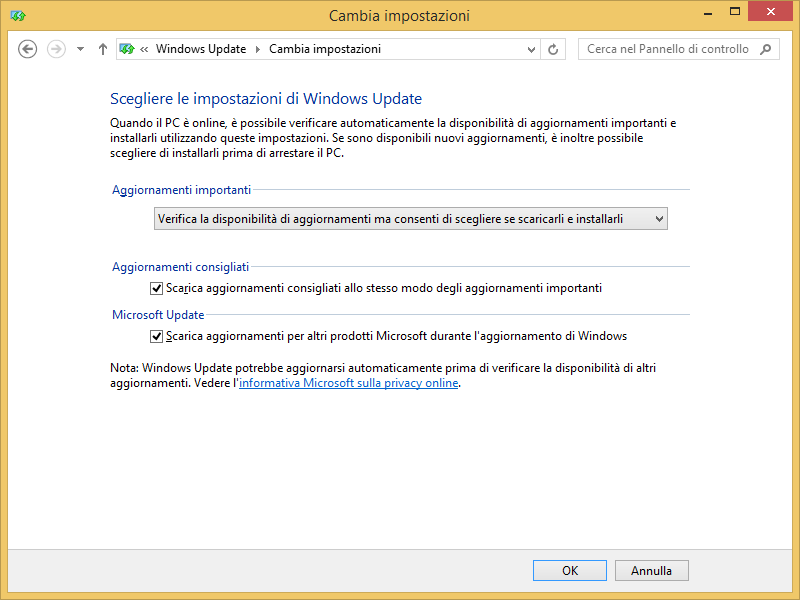
E’ possibile schedulare lo script tramite un file cmd contente un comando di questo tipo (che può anche essere utilizzato per l’avvio dello script durante le fasi di test per visualizzare eventuali errori):
%SystemRoot%\system32\WindowsPowerShell\v1.0\powershell.exe C:\Scripts\InstallUpdates.ps1
In alternativa come suggerito nei commenti da Luigi semplicemente powershell nel campo “Programma o script” dell’operazione pianificata e lo script negli argomenti meglio se preceduto dall’opzione –file, quindi nel nostro caso:
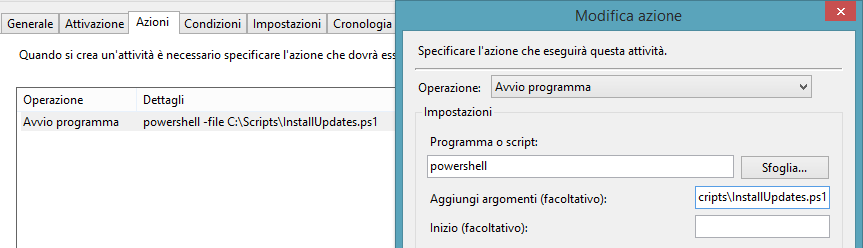
A riguardo si veda anche il post Weekend Scripter: Use the Windows Task Scheduler to Run a Windows PowerShell Script.
Per evitare che la finestra del prompt del dos venga visualizzata quando l’operazione schedulata viene eseguita mentre si è connessi in console impostare l’esecuzione del file cmd tramite l’utente System.
Per poter eseguire gli script PowerShell sui sistemi operativi client occorre impostare l’execution policy almeno a RemoteSigned tramite il cmdlet Set-ExecutionPolicy:
Set-ExecutionPolicy RemoteSigned
Di seguito lo script InstallUpdates.ps1 che va eseguito con privilegi amministrativi e che ho testato su sistemi Windows 8.1:
# *** Impostazioni ***
$rebootAfterUpdate = $TRUE
$updatesLimit = -1
$enableDownload = $TRUE
$enableInstall = $TRUE
$logFilePath = “Path dei file di logs“
$logFileNameSuffix = “LogInstallUpdates”
$logFilesRetained = 10
$sendLogByMail = $TRUE
$smtpServer = “Nome o IP Server SMTP“
$mailFrom = “Indirizzo mail from“
$mailTo = “Indirizzo mail to“
# ********************
# *** Creazione Log Path e impostazione Log File Name
$logFileNameBase = $logFilePath + “\” + $logFileNameSuffix
$logFile = $logFileNameBase + “-” + (Get-Date).ToString(“yyyy-MM-dd-HH-mm-ss”) + “.txt”
if (!(Test-Path $logFilePath)){
New-Item $logFilePath -type directory
}
# *** Ricerca Updates da Installare
$updatesSearcher = New-Object -ComObject Microsoft.Update.Searcher
$updatesPending = $updatesSearcher.Search(“Type=’software’ AND IsInstalled=0 AND IsHidden=0”)
$updatesSelected = $updatesPending.Updates
If ($updatesLimit -ne -1){
$updatesSelected = $updatesSelected | Select-Object -First $updatesLimit
}
# *** Analisi Elenco Updates da installare
If ($updatesPending.Updates.Count -eq 0){
(Get-Date).ToString(“yyyy-MM-dd HH:mm:ss”) + ” Non sono stati trovati aggiornamenti da installare” | Out-File $logFile -append
}
Else {
# Definizione della collezione degli update da scaricare
$updatesDownloadCollection = New-Object -ComObject Microsoft.Update.UpdateColl
# Definizione della collezione degli update da installare
$updatesInstallCollection = New-Object -ComObject Microsoft.Update.UpdateColl
# Scorrimento degli update da installare
ForEach ($update In $updatesSelected) {
# Estrazione ID update da installare
$updateID=$update.Identity.UpdateID
# Log delle informazoni dell’update
(Get-Date).ToString(“yyyy-MM-dd HH:mm:ss”) + ” Analisi aggiornamento da installare” | Out-File $logFile -append
“`t ” + $update.Title | Out-File $logFile -append
“`t ” + “ID: ” + $update.Identity.UpdateID | Out-File $logFile -append
“`t ” + “Mandatory: ” + $update.IsMandatory.ToString() | Out-File $logFile -append
“`t ” + “MaxDownloadSize: ” + $update.MaxDownloadSize + ” bytes” | Out-File $logFile -append
“`t ” + $update.Description | Out-File $logFile -append
If ($update.DownloadPriority -eq 1){
“`t ” + “Priority: Low” | Out-File $logFile -append
}
ElseIf ($update.DownloadPriority -eq 2){
“`t ” + “Priority: Normal” | Out-File $logFile -append
}
ElseIf ($update.DownloadPriority -eq 3){
“`t ” + “Priority: High” | Out-File $logFile -append
}
# Ricerca Item Update
$updateIDSearcher = $updatesSearcher.Search(“UpdateID=’$updateID'”)
$updateIDUpdates = $updateIDSearcher.Updates
$updateIDItem = $updateIDUpdates.Item(0)
# Aggiunta dell’update alla collezione degli update da scaricare
If ($update.IsDownloaded){
“`t ” + “Aggiornamento scaricato” | Out-File $logFile -append
}
Else {
“`t ” + “Aggiornamento da scaricare” | Out-File $logFile -append
$updatesDownloadCollection.Add($updateIDItem) | out-null
}
# Aggiunta dell’update alla collezione degli update da installare
$updatesInstallCollection.Add($updateIDItem) | out-null
#”———–” | Out-File $logFile -append
}
# Avvio Download Aggiornamenti
If ($updatesDownloadCollection.Count -eq 0){
(Get-Date).ToString(“yyyy-MM-dd HH:mm:ss”) + ” Non sono stati trovati aggiornamenti da scaricare” | Out-File $logFile -append
}
ElseIf ($enableDownload) {
(Get-Date).ToString(“yyyy-MM-dd HH:mm:ss”) + ” Avvio download ” + $updatesDownloadCollection.Count + ” aggiornamenti” | Out-File $logFile -append
$updateSession = New-Object -ComObject Microsoft.Update.Session
$updatesDownloader = $updateSession.CreateUpdateDownloader()
$updatesDownloader.Updates = $updatesDownloadCollection
$updatesDownloader.Download()
(Get-Date).ToString(“yyyy-MM-dd HH:mm:ss”) + ” Download aggiornamenti eseguito” | Out-File $logFile -append
}
Else{
(Get-Date).ToString(“yyyy-MM-dd HH:mm:ss”) + ” Necessario dowload di ” + $updatesDownloadCollection.Count + ” aggiornamenti” | Out-File $logFile -append
}
# Installazione Aggiornamenti
If ($updatesInstallCollection.Count -eq 0){
(Get-Date).ToString(“yyyy-MM-dd HH:mm:ss”) + ” Non sono stati trovati aggiornamenti da installare” | Out-File $logFile -append
}
ElseIf ($enableInstall) {
(Get-Date).ToString(“yyyy-MM-dd HH:mm:ss”) + ” Avvio installazione ” + $updatesInstallCollection.Count + ” aggiornamenti” | Out-File $logFile -append
$updatesInstaller = New-Object -ComObject Microsoft.Update.Installer
$updatesInstaller.Updates = $updatesInstallCollection
$updatesInstaller.Install()
(Get-Date).ToString(“yyyy-MM-dd HH:mm:ss”) + ” Installazione aggiornamenti eseguita” | Out-File $logFile -append
}
Else{
(Get-Date).ToString(“yyyy-MM-dd HH:mm:ss”) + ” Necessaria installazione di ” + $updatesInstallCollection.Count + ” aggiornamenti” | Out-File $logFile -append
}
# Invio Log File
If ($sendLogByMail){
$mailSubject = “Installazione aggiornamenti computer ” + $env:computername
$mailBody = Get-Content $logFile | Out-String
If ($rebootAfterUpdate){
$mailBody = $mailBody + “`nIl sistema verrà riavviato”
}
Send-MailMessage -To $mailTo -Subject $mailSubject -From $mailFrom -Body $mailBody -SmtpServer $smtpServer -Encoding Default
(Get-Date).ToString(“yyyy-MM-dd HH:mm:ss”) + ” Invio log tramite mail eseguito” | Out-File $logFile -append
}
# Eliminazione log file obsoleti
$logFiles = Get-ChildItem $logFilePath –PipelineVariable item | Where {$item.psIsContainer -eq $false -and $item.FullName -like ($logFileNameBase + “*”)} | Sort FullName
If ($logFiles.Count -gt $logFilesRetained){
For ($i = 1; $i -le $logFiles.Count – $logFilesRetained; $i++) {
(Get-Date).ToString(“yyyy-MM-dd HH:mm:ss”) + ” Eliminazione log file ” + $logFiles[$i-1].FullName | Out-File $logFile -append
Remove-Item $logFiles[$i-1].FullName | Out-File $logFile -append
}
}
# Esecuzione riavvio
If ($rebootAfterUpdate){
(Get-Date).ToString(“yyyy-MM-dd HH:mm:ss”) + ” Riavvio computer” | Out-File $logFile -append
Restart-Computer
}
}
Per pianificare uno script PowerShell nel Task Scheduler di Windows nel campo “Program/Script” delle Actions e’ sufficiente scrivere
powershell
senza path o altro e nel campo “Add arguments (optional)” il path dello script.
Ci pensa il sistema ad andare a prendere l’interprete di comandi PowerShell.
Ciao Luigi, grazie della precisazione… ho provveduto a fare una piccola integrazione in merito.
Ciao Ermanno, prima di tutto ti faccio i complimenti per il tuo Blog, volevo avere il tuo parere, ho creato uno script che effettua gli aggiornamenti ed installa anche i driver mancanti, magari puo’ servire a qualcuno, ma ho un problema quando provo a scrivre un log su file non installa i driver, magari mi potresti aiutare ad ottimizzare questo script. Al momento fa solo il controllo sulla scheda grafica. Non capisco perche mi da errore se provo a scrivere un log …
Complimenti ancora per il Blog
Set-ExecutionPolicy RemoteSigned
$VideoController = wmic path win32_VideoController get name
if($VideoController -Match “Standard-VGA-Grafikkarte” ){
$UpdateSvc = New-Object -ComObject Microsoft.Update.ServiceManager
$UpdateSvc.AddService2(“7971f918-a847-4430-9279-4a52d1efe18d”,7,””)
$Session = New-Object -ComObject Microsoft.Update.Session
$Searcher = $Session.CreateUpdateSearcher()
$Searcher.ServiceID = ‘7971f918-a847-4430-9279-4a52d1efe18d’
$Searcher.SearchScope = 0 # https://msdn.microsoft.com/en-us/library/windows/desktop/ee694855(v=vs.85).aspx
$Searcher.ServerSelection = 0 # https://msdn.microsoft.com/en-us/library/windows/desktop/aa387280(v=vs.85).aspx
$Criteria = “IsInstalled=0 and Type!=’Driver'”
Write-Host(‘Searching Windows Updates…’) -Fore Green
$SearchResult = $Searcher.Search($Criteria)
$Updates = $SearchResult.Updates
If ($SearchResult.Updates.Count -eq 0){
Write-Host(‘No updates were found/installed’) -Fore Yellow
} else {
#Show available Drivers…
$Updates | select Title, DriverModel, DriverVerDate, Driverclass, DriverManufacturer | fl
$UpdatesToDownload = New-Object -Com Microsoft.Update.UpdateColl
$updates | % { $UpdatesToDownload.Add($_) | out-null }
Write-Host(‘Downloading Updates…’) -Fore Green
$UpdateSession = New-Object -Com Microsoft.Update.Session
$Downloader = $UpdateSession.CreateUpdateDownloader()
$Downloader.Updates = $UpdatesToDownload
$Downloader.Download()
$UpdatesToInstall = New-Object -Com Microsoft.Update.UpdateColl
$updates | % { if($_.IsDownloaded) { $UpdatesToInstall.Add($_) | out-null } }
Write-Host(‘Installing Updates…’) -Fore Green
$Installer = $UpdateSession.CreateUpdateInstaller()
$Installer.Updates = $UpdatesToInstall
$InstallationResult = $Installer.Install()
if($InstallationResult.RebootRequired) {
Write-Host(‘Reboot required! please reboot now..’) -Fore Red
shutdown -r -t 0
} else { Write-Host(‘Done..’) -Fore Green }
$updateSvc.Services | ? { $_.IsDefaultAUService -eq $false -and $_.ServiceID -eq “7971f918-a847-4430-9279-4a52d1efe18d” } | % { $UpdateSvc.RemoveService($_.ServiceID) }
exit
}
$UpdateSvc = New-Object -ComObject Microsoft.Update.ServiceManager
$UpdateSvc.AddService2(“7971f918-a847-4430-9279-4a52d1efe18d”,7,””)
$Session = New-Object -ComObject Microsoft.Update.Session
$Searcher = $Session.CreateUpdateSearcher()
$Searcher.ServiceID = ‘7971f918-a847-4430-9279-4a52d1efe18d’
$Searcher.SearchScope = 1 # MachineOnly
$Searcher.ServerSelection = 3 # Third Party
$Criteria = “IsInstalled=0 and Type=’Driver'”
Write-Host(‘Searching Driver-Updates…’) -Fore Green
$SearchResult = $Searcher.Search($Criteria)
$Updates = $SearchResult.Updates
#Show available Drivers…
$Updates | select Title, DriverModel, DriverVerDate, Driverclass, DriverManufacturer | fl
$UpdatesToDownload = New-Object -Com Microsoft.Update.UpdateColl
$updates | % { $UpdatesToDownload.Add($_) | out-null }
Write-Host(‘Downloading Drivers…’) -Fore Green
$UpdateSession = New-Object -Com Microsoft.Update.Session
$Downloader = $UpdateSession.CreateUpdateDownloader()
$Downloader.Updates = $UpdatesToDownload
$Downloader.Download()
$UpdatesToInstall = New-Object -Com Microsoft.Update.UpdateColl
$updates | % { if($_.IsDownloaded) { $UpdatesToInstall.Add($_) | out-null } }
Write-Host(‘Installing Drivers…’) -Fore Green
$Installer = $UpdateSession.CreateUpdateInstaller()
$Installer.Updates = $UpdatesToInstall
$InstallationResult = $Installer.Install()
if($InstallationResult.RebootRequired) {
Write-Host(‘Reboot required! please reboot now..’) -Fore Red
shutdown -r -t 0
} else { Write-Host(‘Done..’) -Fore Green
}
$updateSvc.Services | ? { $_.IsDefaultAUService -eq $false -and $_.ServiceID -eq “7971f918-a847-4430-9279-4a52d1efe18d” } | % { $UpdateSvc.RemoveService($_.ServiceID) }
exit
} else {
exit
}
Ciao e grazie per essere un lettore del mio blog
ma di preciso su quale istruzione si blocca lo script?
Guardandolo non mi pare che ci siano istruzioni che creano un log su file ma solo output video tramite Write-Host
Ciao Ermanno, si hai ragione avevo postato lo script senza log, ho trovato una soluzione diversa ma ricevo un errore precisamente HRESULT: 0x80240024, come posso risolvero?
Nel mio log non riesco ad iserire una lista dettagliata dei driver/update da installare come posso fare?
Cmq spero che possa servire a qualcuno questo piccolo script, certo va ottimizzato, in questo spero in un tuo aiuto ;)
Set-ExecutionPolicy RemoteSigned
$Logfile = “c:\users\$(gc env:computername)-DriverUpgrade.log”
Function LogWrite
{
Param ([string]$logstring)
Add-content $Logfile -value $logstring
}
$VideoController = get-wmiobject win32_videocontroller Description
if($VideoController.Description -Match “Standard-VGA-Grafikkarte” ){
$UpdateSvc = New-Object -ComObject Microsoft.Update.ServiceManager
$UpdateSvc.AddService2(“7971f918-a847-4430-9279-4a52d1efe18d”,7,””)
$Session = New-Object -ComObject Microsoft.Update.Session
$Searcher = $Session.CreateUpdateSearcher()
$Searcher.ServiceID = ‘7971f918-a847-4430-9279-4a52d1efe18d’
$Searcher.SearchScope = 0 # https://msdn.microsoft.com/en-us/library/windows/desktop/ee694855(v=vs.85).aspx
$Searcher.ServerSelection = 0 # https://msdn.microsoft.com/en-us/library/windows/desktop/aa387280(v=vs.85).aspx
$Criteria = “IsInstalled=0 and Type!=’Driver'”
Write-Host(‘Searching Windows Updates…’) -Fore Green
LogWrite((Get-Date).ToString(“yyyy-MM-dd HH:mm:ss”) +” Searching Windows Updates…” )
$SearchResult = $Searcher.Search($Criteria)
$Updates = $SearchResult.Updates
If ($SearchResult.Updates.Count -eq 0){
Write-Host(‘No updates were found/installed’) -Fore Yellow
LogWrite((Get-Date).ToString(“yyyy-MM-dd HH:mm:ss”) +” No updates were found/installed”)
} else {
#Show available Drivers…
$Updates | select Title| fl
$UpdatesToDownload = New-Object -Com Microsoft.Update.UpdateColl
$updates | % { $UpdatesToDownload.Add($_) | out-null }
Write-Host(‘Downloading Updates…’) -Fore Green
LogWrite((Get-Date).ToString(“yyyy-MM-dd HH:mm:ss”) +” Downloading Updates…”)
$UpdateSession = New-Object -Com Microsoft.Update.Session
$Downloader = $UpdateSession.CreateUpdateDownloader()
$Downloader.Updates = $UpdatesToDownload
$Downloader.Download()
$UpdatesToInstall = New-Object -Com Microsoft.Update.UpdateColl
$updates | % { if($_.IsDownloaded) { $UpdatesToInstall.Add($_) | out-null } }
Write-Host(‘Installing Updates…’) -Fore Green
LogWrite((Get-Date).ToString(“yyyy-MM-dd HH:mm:ss”) +” Installing Updates…”)
$Installer = $UpdateSession.CreateUpdateInstaller()
$Installer.Updates = $UpdatesToInstall
$InstallationResult = $Installer.Install()
if($InstallationResult.RebootRequired) {
Write-Host(‘Reboot required! please reboot now..’) -Fore Red
LogWrite((Get-Date).ToString(“yyyy-MM-dd HH:mm:ss”) +” Reboot required!”)
shutdown -r -t 0
} else {
Write-Host(‘Done..’) -Fore Green
LogWrite((Get-Date).ToString(“yyyy-MM-dd HH:mm:ss”) +” Done.”)
}
$updateSvc.Services | ? { $_.IsDefaultAUService -eq $false -and $_.ServiceID -eq “7971f918-a847-4430-9279-4a52d1efe18d” } | % { $UpdateSvc.RemoveService($_.ServiceID) }
}
$UpdateSvc = New-Object -ComObject Microsoft.Update.ServiceManager
$UpdateSvc.AddService2(“7971f918-a847-4430-9279-4a52d1efe18d”,7,””)
$Session = New-Object -ComObject Microsoft.Update.Session
$Searcher = $Session.CreateUpdateSearcher()
$Searcher.ServiceID = ‘7971f918-a847-4430-9279-4a52d1efe18d’
$Searcher.SearchScope = 1 # MachineOnly
$Searcher.ServerSelection = 3 # Third Party
$Criteria = “IsInstalled=0 and Type=’Driver'”
Write-Host(‘Searching Driver-Updates…’) -Fore Green
LogWrite((Get-Date).ToString(“yyyy-MM-dd HH:mm:ss”) +” Searching Driver-Updates…”)
$SearchResult = $Searcher.Search($Criteria)
$Updates = $SearchResult.Updates
#Show available Drivers…
$Updates | select Title, DriverModel, DriverVerDate, Driverclass, DriverManufacturer | fl
$UpdatesToDownload = New-Object -Com Microsoft.Update.UpdateColl
$updates | % { $UpdatesToDownload.Add($_) | out-null }
Write-Host(‘Downloading Drivers…’) -Fore Green
LogWrite((Get-Date).ToString(“yyyy-MM-dd HH:mm:ss”) +” Downloading Drivers…”)
$UpdateSession = New-Object -Com Microsoft.Update.Session
$Downloader = $UpdateSession.CreateUpdateDownloader()
$Downloader.Updates = $UpdatesToDownload
$Downloader.Download()
$UpdatesToInstall = New-Object -Com Microsoft.Update.UpdateColl
$updates | % { if($_.IsDownloaded) { $UpdatesToInstall.Add($_) | out-null } }
Write-Host(‘Installing Drivers…’) -Fore Green
LogWrite((Get-Date).ToString(“yyyy-MM-dd HH:mm:ss”) +” Installing Drivers…”)
$Installer = $UpdateSession.CreateUpdateInstaller()
$Installer.Updates = $UpdatesToInstall
$InstallationResult = $Installer.Install()
Write-Host(‘Final Rebooting..’) -Fore Red
LogWrite((Get-Date).ToString(“yyyy-MM-dd HH:mm:ss”) +” Final Rebooting..”)
shutdown -r -t 0
} else {
exit
}
ma su quale riga ti viene segnalato l’erroe 80240024?
Ciao sto usando il tuo script, ma scrivi “La parte iniziale dello script permette di gestire alcuni flag gestire il funzionamento dello script, il parametro $updatesLimit se diverso da -1 permette di installare solo un numero specificato di aggiornamenti”
invece a me esegue riavvio dopo un aggiornamento. non ho capito se posso installare tutti aggiornamenti prima di riavviare.
Ciao Dave,
vi sono alcuni aggiornamenti che non possono essere installati se non sono prima installati altri aggiornamenti.
Oltre a ciò potrebbe essersi verificato qualche problema sul sistema, hai già provato a fare un aggiornamento manuale
e a vedere se poi il tutto riprende normalmente?
Ciao e grazie per la risposta.
lo script eseguito ripetutaente, commentando la sezione di reboot, mi installa tutti aggiornamenti, pero’ un aggiornamento per ogni esecuzione.
ho provato su diversi server, e sempre stesso comportamento, sembra che non faccia il ciclo.
grazie nuovamente
Ciao,
l’unica altra cosa che mi viene in mente è che ci sia stato un problema di copia incolla tra pagina web e file di test dello script e il trattino nell’istruzione $updatesLimit = -1 sia stato male interpretato.
Se provi a modificare $updatesLimit = 2 ti fa due aggiornamenti?
Nel caso riscrivi a mano -1
Ciao
ho scritto a mano “$updatesLimit = 2” , eseguito script, e ha installato un solo aggiornamento, lasciando altri 12 da installare.
hai già provato a pulire la cache degli aggiornamenti?
Arrestare il servizio Aggiornamenti automatici tramite il comando net stop wuauserv
Arrestare il servizio Servizio trasferimento intelligente in background tramite il comando net stop bits
Eliminare la cartella %windir%/softwaredistribution
Riavviare il sistema